Camera photos, on your Android phone

From camera to phone.
Transfer. Select. Export.

Bring the camera photos you need onto your phone. Receive JPEG / RAW files, sort your selections and export them for your next step. Shooting controls are there when your camera supports them.

Android 8.0+ Development preview 0.1.0 Public download coming later

01 Connect02 Transfer03 Select04 Export
Inside LensDock
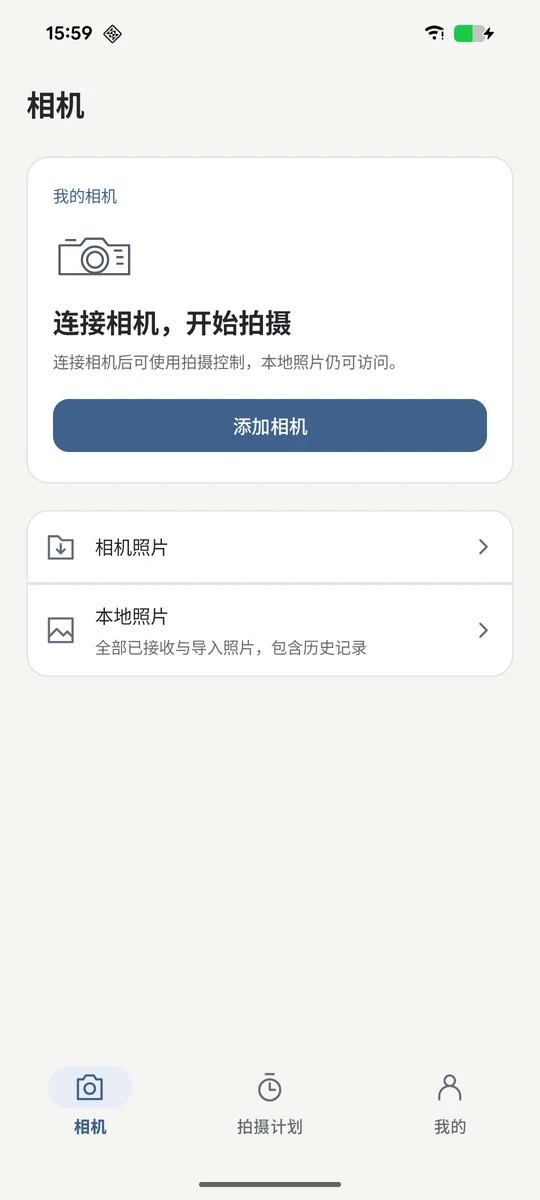
LensDock camera home in Chinese, disconnected: add a camera, browse camera photos or local photos; bottom navigation shows Camera, Shooting plans and Me.
FIG. 01Actual development UI · Camera disconnected
Captured Nov 4, 2026. The app may change. Screenshot shows the Chinese UI.

On location

From shooting to selection,
keep your workflow moving.

From your camera to your phone, then to your delivery destination.
Four steps around a single shoot.

  1. 01

    Connect your camera

    Check your model, connection type and the file capabilities available on this device.

  2. 02

    Receive your photos

    Browse camera files and choose the JPEG / RAW originals you need.

  3. 03

    Make your selection

    Rate and filter local photos on your Android phone.

  4. 04

    Export your results

    Prepare originals, file lists, XMP or PDF contact sheets for your workflow.

For the whole shoot

The tools you need,
where you need them.

Focus on the frame while shooting and on your choices while sorting.
Open advanced options when you need them.

01 / TRANSFER & SELECT

Find the photographs
you want to keep.

Browse files on your camera and receive the originals you need. Organize, rate and filter local photos. Camera files and photos already on your phone have separate entry points.

How to transfer camera photos to Android →
JPEG RAW

A preview is not the original.

Browsing and receiving full files are separate operations. File identity and task status distinguish a visible preview from a saved original.

Browse camera filesReceive originalsRate and filter

Large-file transfer and recovery depend on the connection. RAW preview is not full RAW development.

02 / EXPORT

Once you have selected,
continue your workflow.

Take originals and selection results into your next step. Prepare files, metadata or PDF contact sheets, and back up files to a NAS according to your settings.

Originals and file lists

Share with Android or save to a chosen folder

XMP / IPTC

Separate sidecars or JPEG metadata copies

PDF contact sheets

Prepare photographs for review and discussion

NAS backup

Use your own connection settings

Interoperability with external software and real NAS services still needs validation.

03 / SHOOT

Keep camera control
close at hand.

Check live view, release the shutter and adjust the settings your camera supports. Save frequently used settings as templates for your next shoot.

Work with your current camera

  • Remote shooting and live viewSubject to device capabilities
  • Exposure and advanced settingsRead available options
  • Presets and custom templatesManage frequently used settings
  • Shooting plansOrganize shooting sequences

Available controls depend on the model, firmware, lens and camera mode.

Check before connecting

Which connection
fits your camera?

Connection capabilities depend on the specific device.
Connection requirements and catalog sources are explained separately.

5 connection and authorization options

Device validation in progress

No physically validated models have been announced. Canon EOS 80D is the priority test device, not a compatibility guarantee.

USB / PTP

Integrated · Not physically tested

Connect with a data cable. Your phone must support USB Host and you must grant the app USB access.

Before you start
Check that the cable transfers data and that the camera is in the required USB mode.
Scope
Shooting, live view, settings and file capabilities depend on the connected device.

Canon CCAPI

Integrated · Not physically tested

For Canon cameras that provide and enable CCAPI. The phone must be able to reach the camera over the network.

Before you start
Confirm that your model provides this interface and enable it according to the camera instructions.
Scope
Wi-Fi alone does not indicate CCAPI support.

Manual PTP/IP

Integrated · Not physically tested

Manual network connection for devices with the required PTP/IP capabilities.

Before you start
Confirm protocol support and complete the required pairing and network setup first.
Scope
Sony SSH and experimental Nikon Bluetooth pairing have entry points. Automatic Nikon Wi-Fi setup and the full SnapBridge workflow remain incomplete; models still need physical testing.

Sony SSH

Integrated · Not physically tested

SSH PTP2/3 access for Sony network connections that require authentication. Prepare the username, password and SHA256 public-key fingerprint requested by your camera.

Before you start
Confirm that the model offers the network interface and enable the required authentication on the camera.
Scope
The authentication tunnel is integrated. Firmware compatibility, authentication and actual controls still need physical camera testing.

Nikon Bluetooth pairing

Experimental · Not physically tested

Start Bluetooth authentication and system pairing, choose your camera and compare the pairing codes on the phone and camera.

Before you start
Grant the required Bluetooth permissions and put the camera into pairing mode.
Scope
Pairing does not establish a shooting connection. Automatic Wi-Fi wake-up, hotspot credential retrieval and the full SnapBridge workflow remain incomplete.
The catalog distinguishes USB driver entries, official documentation and model identification; none implies a physical test pass. Transfers over 4 GiB, recovery across reconnections and background tasks need device validation.

Questions before you start

A few things
to know first.

Read the full getting-started guide
Do I need to keep a computer connected?

LensDock runs on Android phones. Camera connections and local organization take place on the phone. Installation, camera activation and specific network preparations depend on the device.

Does Wi-Fi mean my camera can connect wirelessly?

Wi-Fi alone is not enough. CCAPI, PTP/IP and brand-specific pairing have different requirements. Wireless photo transfer does not automatically provide the required control interface. Check the connection notes above.

Can I receive RAW files?

JPEG / RAW original-file reception is integrated, subject to the device and connection. Thumbnails, previews and full originals are different. RAW previews and basic processing do not replace a full professional RAW development workflow.

Can an interrupted transfer continue?

Connections with random reads can use chunk checkpoints. Others may need to reread the entire file and verify existing chunks. Unknown file sizes have further limits. Use the recovery method shown in the app; universal resumable transfer is not guaranteed.

Where do templates and selection results fit?

Presets and custom templates store camera settings; shooting plans organize sequences. Photo ratings and filtering belong to local organization and can be used for metadata or file exports. The target camera must support the template settings.

Can I download the app now?

The current release is development preview 0.1.0. Public download channels have not been announced. This site explains capabilities and connection preparation; future downloads will use confirmed release links.

Your next shoot

Get ready,
then connect your camera.

LensDock 0.1.0 is under development and validation.
Public downloads have not been announced. Start by exploring the connection and usage guide.

Read the guide